
Automating with Triggers
Learn how to use triggers to automate agents with scripts, webhooks, and scheduled tasks.
What Are Triggers?
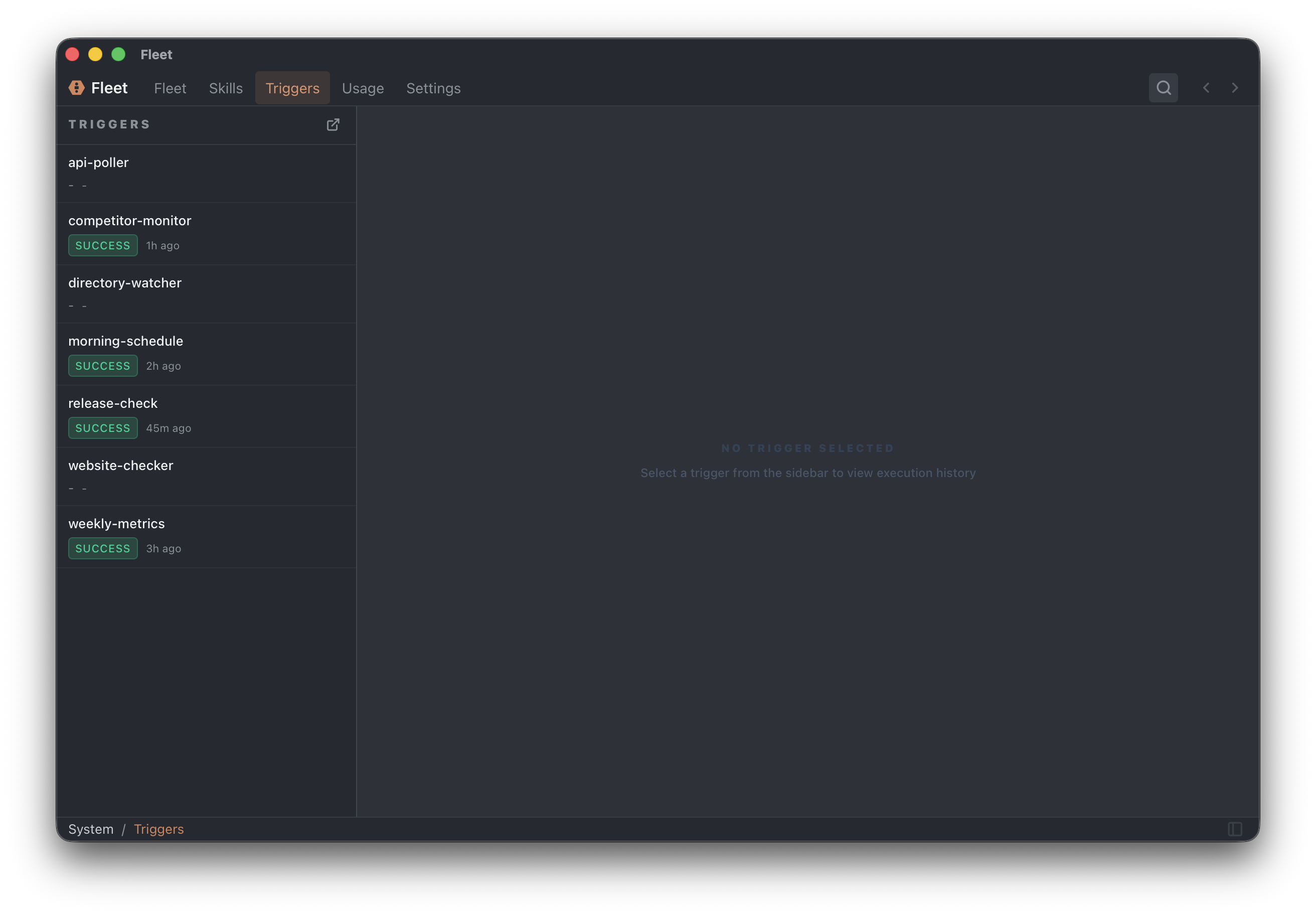
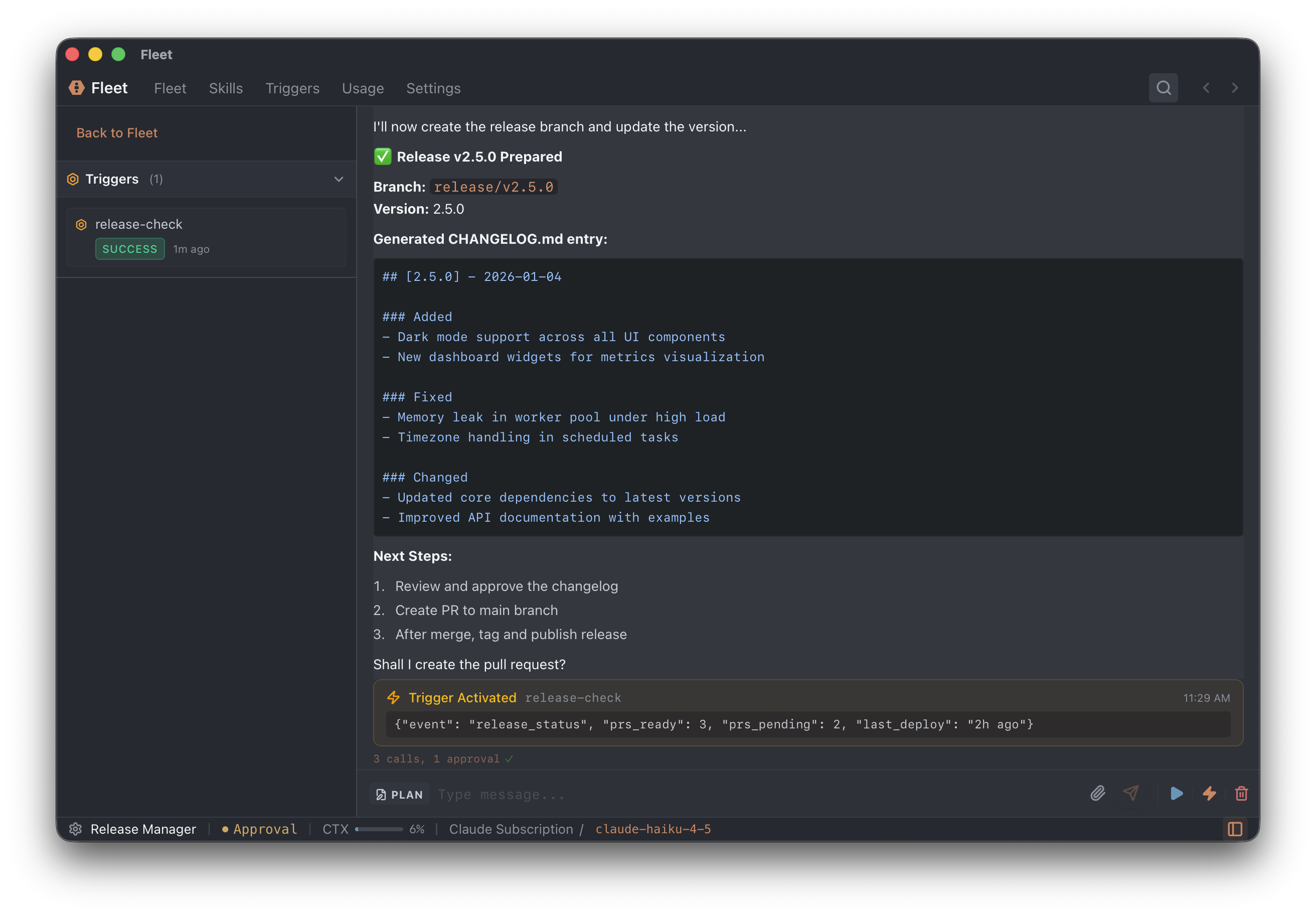
Triggers automatically wake up agents based on events. Instead of manually chatting with an agent, triggers let it run on its own — in response to scripts, webhooks, or schedules.
How Triggers Work
- Event occurs — Script outputs text, webhook receives data, or schedule fires
- Trigger activates — The event is captured with its payload
- Agent wakes up — Subscribed agents receive the output
- Agent runs task — Executes based on the trigger prompt
- Results are saved — Output is stored in the conversation
Trigger Types
Fleet supports three types of triggers:
| Type | Source | Use Case |
|---|---|---|
| Script | Local scripts (poll/daemon) | File watching, API polling, log monitoring |
| Webhook | External HTTP POST | GitHub, Stripe, Telegram, Slack integrations |
| Schedule | One-time timer | Reminders, delayed tasks |
Script Triggers
Local scripts that run on your machine, either on an interval (poll) or continuously (daemon).
Creating Script Triggers
Ask an agent to create a trigger:
Create a trigger that watches ~/inbox for new files
The agent uses the create_script_trigger tool:
create_script_trigger(
  name: "file-watcher",
  mode: "daemon",
  script: "fswatch -1 ~/inbox",
  cooldown: "30s"
)
Parameters:
name(required): Unique trigger namemode(required):pollordaemonscript(required): Bash script contentdescription: What it monitorsinterval: Poll mode only (e.g., "5m"). Minimum 1m.cooldown: Daemon mode only (e.g., "30s")env: Environment variables. Use{{vault:SECRET}}for secrets.
Poll vs Daemon
Poll triggers run on an interval:
- Script runs every X minutes (minimum 1 minute)
- If script outputs text → trigger fires
- If script outputs nothing → nothing happens
Daemon triggers run continuously:
- Script starts and stays running
- Every line it outputs → trigger fires
- Use cooldown to throttle rapid events
Example: Weekly Report
create_script_trigger(
  name: "monday-check",
  mode: "poll",
  interval: "5m",
  script: "if [[ $(date +%u) -eq 1 && $(date +%H) -eq 9 ]]; then echo 'Monday 9AM'; fi"
)
Example: File Watcher
create_script_trigger(
  name: "inbox-watcher",
  mode: "daemon",
  script: "fswatch -1 ~/inbox/",
  cooldown: "30s"
)
Example: API Poller with Secrets
First save the API key to vault, then create the trigger:
create_script_trigger(
  name: "api-checker",
  mode: "poll",
  interval: "5m",
  script: "curl -sH \"Authorization: Bearer $API_KEY\" $API_URL",
  env: {"API_KEY": "{{vault:MY_API_KEY}}", "API_URL": "https://api.example.com/status"}
)
Webhook Triggers
Receive HTTP POST requests from external services like GitHub, Stripe, or Telegram.
Requires Fleet Gateway login — Go to Settings → Remote to connect.
Creating Webhooks
Ask an agent:
Create a webhook for GitHub events
The agent uses create_webhook:
create_webhook(name: "github-events")
This returns a URL like https://fleet-gateway.fly.dev/t/abc123. Give this URL to the external service.
Common Integrations
GitHub: Repository → Settings → Webhooks → Add webhook → Paste URL
Stripe: Dashboard → Developers → Webhooks → Add endpoint → Paste URL
Telegram: See the dedicated Telegram Integration guide for full setup instructions.
Slack: api.slack.com → Create app → Event Subscriptions → Paste URL
Subscribing to Triggers
After creating a trigger, subscribe an agent to receive events:
trigger_subscribe(
  trigger_name: "file-watcher",
  prompt_template: "A new file was detected: {{output}}. Process and summarize it."
)
The {{output}} placeholder gets replaced with the trigger's output.
Note: Webhook trigger names use the webhook: prefix:
trigger_subscribe(
  trigger_name: "webhook:github-events",
  prompt_template: "GitHub event: {{output}}"
)
One-Time Tasks
Agents can schedule one-time tasks:
Schedule a reminder for tomorrow at 9 AM to check the deployment
The agent uses schedule_once:
schedule_once(time: "2024-01-15T09:00:00", prompt: "Check deployment status")
One-time tasks survive app restarts.
Managing Triggers
From the UI
Open Settings → Triggers to:
- View all triggers
- Enable/disable triggers
- Click Run Now to test
- View run history (status, output, errors)
With Tools
| Action | Tool |
|---|---|
| Create script trigger | create_script_trigger(...) |
| Create webhook | create_webhook(name) |
| Schedule one-time | schedule_once(time, prompt) |
| List script triggers | list_script_triggers() |
| List webhooks | list_webhooks() |
| Delete script trigger | delete_script_trigger(name) |
| Delete webhook | delete_webhook(webhook_id) |
| Subscribe | trigger_subscribe(trigger_name, prompt_template) |
| List subscriptions | trigger_subscriptions() |
| Unsubscribe | trigger_unsubscribe(id) |
Writing Good Prompts
The prompt tells the agent what to do when the trigger fires.
Good Prompts
Be specific:
- "Summarize the new files in ~/inbox and move them to ~/processed"
- "Parse the error message and search the codebase for related code"
- "Review this GitHub PR and provide feedback"
Avoid Vague Prompts
These won't work well:
- "Do something useful"
- "Process it"
- "Handle this"
Limitations
Poll Triggers
- Minimum interval: 1 minute
- Scheduler tick: 30 seconds — Timing may vary by up to 30 seconds
Daemon Triggers
- One process per trigger
- Cooldown minimum: 1 second
- Restart on crash — Daemons restart automatically
General
- No interactive input — Scripts cannot prompt for user input
- LLM costs — Each trigger event costs API tokens
- Scripts run independently — They can't access agent conversation history
Next Steps
- Connect to Telegram to message agents from your phone
- Create agents to respond to triggers
- Build skills for complex trigger responses