
Triggers
Automate agent execution with triggers—schedules, webhooks, file watchers, git hooks, and more.
What Are Triggers?
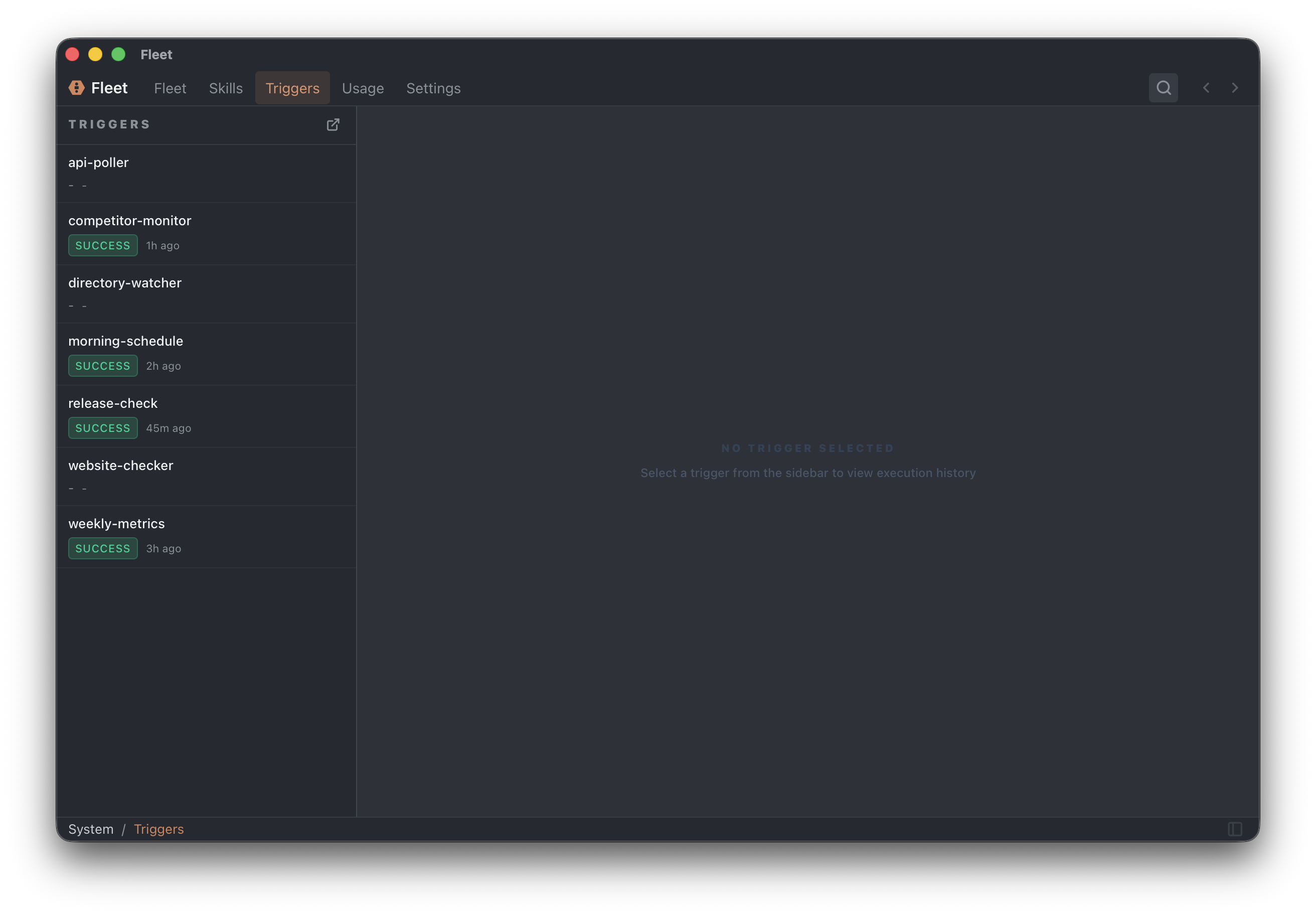
Triggers automatically wake up agents based on events. Instead of manually chatting with an agent, triggers let agents run on their own—responding to schedules, file changes, git commits, webhooks, and more.
How Triggers Work
- Event occurs — Cron fires, file changes, webhook received, git commit made
- Trigger activates — Fleet captures the event with its payload
- Agent wakes up — Subscribed agents receive the event data
- Agent runs task — Executes based on the trigger prompt template
- Results saved — Output is stored in the agent's conversation
Trigger Types
Fleet supports seven trigger types:
| Type | Source | Use Case | Interactive |
|---|---|---|---|
| Schedule | Cron expression | Daily reports, periodic checks | No |
| Webhook | HTTP POST | GitHub, Stripe, Slack integrations | Yes |
| File Watcher | Filesystem events | Process new files, watch directories | No |
| Daemon | Continuous script | Log monitoring, real-time feeds | No |
| Git Hook | Git repository | Pre-commit checks, post-push automation | Depends |
| CLI | Command line | Manual invocation with parameters | Yes |
| MCP | MCP protocol | Tool invocation from other apps | Yes |
Interactive triggers have a user present who can respond to approval requests and questions. Non-interactive triggers run autonomously and must have pre-approved permissions.
See Trigger Types Reference for complete configuration details.
Schedule Triggers
Run agents on a cron schedule.
name: daily-standup
type: schedule
cron: "0 9 * * 1-5"  # 9 AM on weekdays
Common patterns:
0 9 * * *— Every day at 9 AM*/15 * * * *— Every 15 minutes0 0 * * 0— Every Sunday at midnight
Webhook Triggers
Receive HTTP POST requests from external services.
Requires Fleet Gateway — Connect at Settings → Remote.
Create a webhook for GitHub events
Fleet generates a URL like https://fleet-gateway.fly.dev/t/abc123. Provide this URL to the external service.
Common integrations:
- GitHub — Repository webhooks for push, PR, issue events
- Stripe — Payment and subscription events
- Slack — Message and interaction events
File Watcher Triggers
Trigger when files change in watched directories.
name: inbox-processor
type: file_watcher
watch_paths:
  - ~/inbox
  - ~/Downloads/*.pdf
Supports glob patterns for flexible file matching.
Daemon Triggers
Continuously running scripts that output events.
name: error-monitor
type: daemon
script: |
  tail -F /var/log/app.log | grep --line-buffered "ERROR"
Each line of stdout triggers the subscribed agents. Daemons restart automatically if they exit.
Git Hook Triggers
Integrate with git repository lifecycle events.
name: pre-commit-check
type: git_hook
git_hook_type: pre-commit
repo_paths:
  - ~/projects/my-app
pass_context: true
Supported hooks:
| Blocking (Interactive) | Non-blocking |
|---|---|
| pre-commit | post-commit |
| commit-msg | post-merge |
| prepare-commit-msg | post-checkout |
| pre-push | post-rewrite |
| pre-rebase |
Blocking hooks wait for the agent to complete and can prevent the operation (exit code 1).
CLI Triggers
Invoke agents from the command line with parameters.
fleet run code-reviewer --param file_path=./src --param focus=security
Parameters are matched to the agent's parameter definitions in AGENT.md.
MCP Triggers
When Fleet runs as an MCP server, other applications can invoke agents as tools.
fleet mcp
Each agent becomes an MCP tool with its parameters exposed.
Binding Triggers to Agents
Connect triggers to agents in the agent's AGENT.md:
---
name: pr-reviewer
description: Reviews pull requests

triggers:
  - trigger: webhook:github-events
    params:
      pr_number: "{{body.pull_request.number}}"
      repo: "{{body.repository.full_name}}"
    enabled: true

  - trigger: daily-summary
    enabled: true
---
Trigger Binding Fields
| Field | Type | Description |
|---|---|---|
trigger |
string | Trigger name. Webhooks use webhook: prefix. |
params |
map | Parameter mapping with template substitution |
enabled |
boolean | Whether this binding is active (default: true) |
Template Variables
Use {{output}} for raw trigger output or access structured fields for webhooks:
params:
  action: "{{body.action}}"
  sender: "{{body.sender.login}}"
Managing Triggers
From the UI
Open Settings → Triggers to:
- View all triggers
- Enable/disable triggers
- Click Run Now to test
- View run history (status, output, errors)
With Agent Tools
| Action | Tool |
|---|---|
| Create script trigger | create_script_trigger(...) |
| Create webhook | create_webhook(name) |
| Schedule one-time task | schedule_once(time, prompt) |
| List triggers | list_script_triggers(), list_webhooks() |
| Delete trigger | delete_script_trigger(name), delete_webhook(id) |
| Subscribe agent | trigger_subscribe(trigger_name, prompt_template) |
| List subscriptions | trigger_subscriptions() |
| Unsubscribe | trigger_unsubscribe(id) |
Non-Interactive Trigger Requirements
When triggers run without user interaction, agents must have:
- Appropriate execution tier — Read-only or read-write as needed
- Pre-approved permission rules — Tools must be allowed without prompting
- Access to secrets — Vault secrets listed in
secretsfield
Configure these in the agent's AGENT.md:
permissions:
  execution_tier: read_write
  rules:
    - "Bash(npm:*)"
    - "Bash(git:*)"

secrets:
  - GITHUB_TOKEN
Best Practices
Write Clear Prompt Templates
Be specific about what the agent should do:
# Good
"A new PDF was added to inbox: {{output}}.
Extract the key information, summarize it, and move to ~/processed."

# Avoid
"Handle this file: {{output}}"
Set Appropriate Permissions
Non-interactive triggers can't ask for approval. Grant only what's needed:
permissions:
  execution_tier: read_only  # If writing isn't needed
  directories:
    - path: ~/inbox
      access: read
    - path: ~/processed
      access: readwrite
Use Cooldowns Wisely
File watchers and daemons have built-in cooldowns to prevent overwhelming agents. Consider the trade-off between responsiveness and efficiency.
Test Before Deploying
Use Run Now in Settings → Triggers to test trigger behavior before relying on automation.
Limitations
- Schedule tick: 30 seconds — Timing may vary by up to 30 seconds
- Daemon cooldown minimum: 1 second — Prevents flooding
- No interactive input — Non-interactive triggers can't prompt users
- API costs — Each trigger event consumes API tokens
Next Steps
- Trigger Types Reference — Complete configuration details
- Build automation workflows
- Example automations