
Agents
Learn how agents work in Fleet, including configuration, hierarchies, and workflows.
What Are Agents?
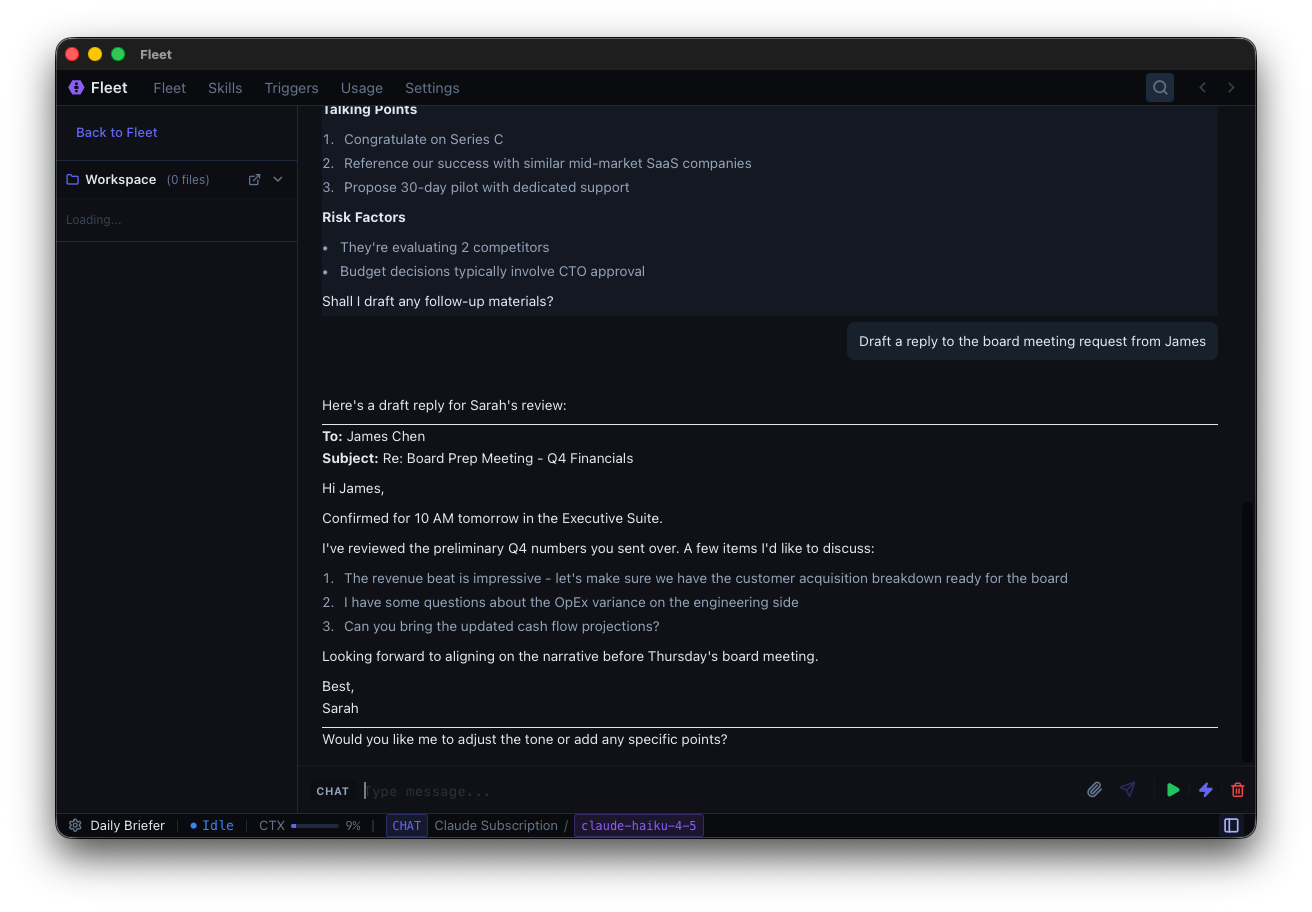
Agents are autonomous AI assistants that operate within Fleet. They:
- Execute tasks using tools (browser, terminal, file operations)
- Maintain memory with persistent conversation history
- Organize hierarchically with parent-child relationships
- Specialize through custom prompts, tools, and permissions
- Automate via triggers and schedules
Agent Types
Main Agent (Parent)
- Your primary assistant
- Can spawn and manage sub-agents
- Receives reports from all sub-agents
Sub-Agents (Child)
- Specialized workers spawned by a parent agent
- Only one level deep — sub-agents cannot create their own sub-agents
- Operate independently with isolated context
- Report back to parent on completion
- Useful for parallel work or isolating tasks
Creating Agents
From the Dashboard
Click New Agent (Cmd+N) and start chatting. The agent will name itself based on its role.
From AGENT.md
Create an AGENT.md file for declarative agent configuration:
---
name: code-reviewer
description: Reviews code for quality and security
model:
  provider: anthropic
  model: claude-sonnet-4-20250514
permissions:
  execution_tier: read_only
---

You are a code reviewer. Focus on security, performance, and maintainability.
See AGENT.md Reference for all configuration options.
Sub-Agents
Agents automatically spawn sub-agents when they need to delegate work. You cannot create sub-agents manually — only agents can spawn them.
Configuring Agents
Model Selection
Fleet uses a 2-tier model system:
Default Model — Main model for agent conversations
- Claude Sonnet — Recommended for most tasks
Subagent Model — Used for spawned subagents
- Claude Haiku — Fast and cost-effective for subtasks
Configure in Settings → Models or per-agent in the agent settings.
Parameters
Agents can accept structured parameters when invoked via CLI, triggers, or API:
parameters:
  - name: project_path
    type: path
    required: true
    description: Path to analyze
  - name: focus
    type: string
    default: all
Parameters are substituted into the system prompt using {{parameter_name}}.
Permissions
Control what actions an agent can take:
permissions:
  execution_tier: read_write
  directories:
    - path: ~/projects
      access: readwrite
  network:
    - "*.github.com"
  rules:
    - "Bash(npm:*)"
See Execution Tiers and Permission Rules.
Custom System Prompt
The markdown body of AGENT.md becomes the system prompt:
---
name: my-agent
model:
  provider: anthropic
  model: claude-sonnet-4-20250514
---

You are a development assistant specializing in TypeScript.

## Guidelines
- Always run tests before committing
- Follow existing code style
Lifecycle Hooks
Execute custom logic at specific points:
hooks:
  - event: onStart
    action: script
    script: |
      git log --oneline -5
    captureOutput: true
See Lifecycle Hooks for all hook events and options.
Skills
Enable specific skills for the agent:
enabled_skills:
  - code-review
  - documentation
See Skills for building and using skills.
Triggers
Bind triggers for automated execution:
triggers:
  - trigger: file-watcher
    enabled: true
  - trigger: webhook:github-pr
    params:
      pr: "{{body.pull_request.number}}"
See Triggers for all trigger types.
Plan Mode
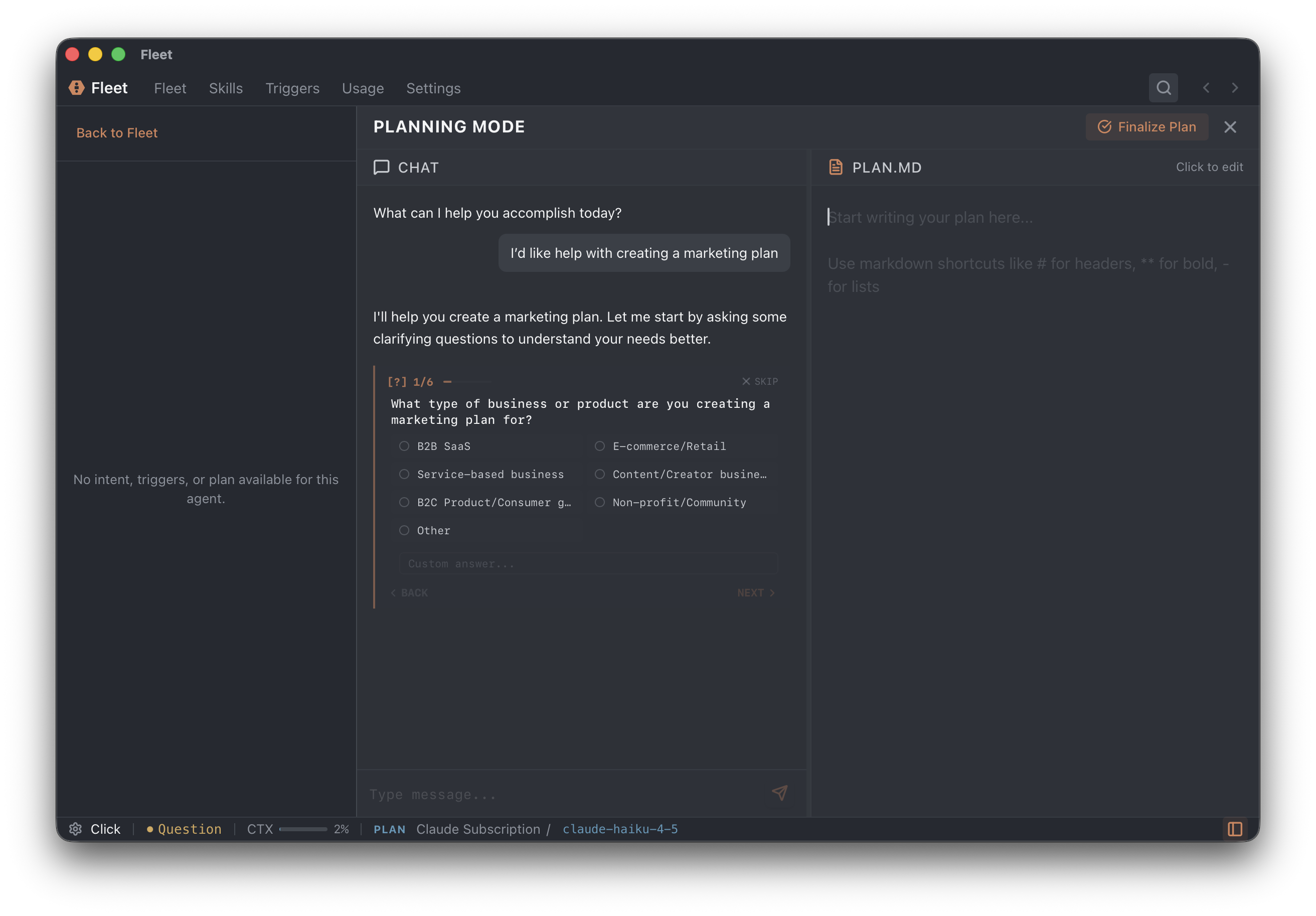
Collaborate with an agent on complex tasks before execution:
- Enter Plan Mode — Click the plan mode button
- Two-Pane Interface — Left: plan document, Right: chat
- Collaborative Editing — Both you and the agent edit the plan
- Finalization — Agent creates todo items and begins working
- Execution — Agent works through items step-by-step
Plans are stored in ~/Library/Application Support/com.usefamiliar.desktop/plans/.
Agent Workspace
Each agent has a dedicated workspace:
Location: ~/Library/Application Support/com.usefamiliar.desktop/workspaces/<agent-id>/
Contains:
- Files created by the agent
- Downloaded files
- Tool result files
Permissions:
- Agents have full read/write access to their workspace
- Agents cannot access other agents' workspaces
- Parent agents can access sub-agent workspaces
Agent Hierarchy
Organize agents with parent-child relationships:
Project Manager
├── Researcher (gathers information)
├── Developer (writes code)
├── Reviewer (checks quality)
└── Writer (creates docs)
Benefits
- Parallel work — Multiple agents run simultaneously
- Specialization — Focused roles for each agent
- Isolation — Problems don't cascade
- Scalability — Handle complex projects
Communication Model
- Sub-agents only communicate with their parent
- You interact through the parent agent
- Approvals flow through the parent
Inter-Agent Communication
Agents can communicate across the hierarchy:
agent_list
Discover available agents and their states.
agent_message
Send messages to other agents:
agent_message(agent_id="database-expert", message="What index optimizes this query?")
See Tools Reference.
Agent States
| State | Meaning |
|---|---|
| Idle | Waiting for input |
| Running | Processing your request |
| Paused | Execution paused by you |
| Waiting | Waiting for sub-agents or triggers |
| Awaiting Approval | Needs permission to execute a tool |
| Awaiting Secret | Needs sensitive input |
| Awaiting QA Response | Waiting for your answer |
| Completed | Task finished successfully |
| Error | Something went wrong |
MCP Integration
Agents can access external tools via MCP servers:
mcp_servers:
  - github
  - filesystem

mcp_permissions:
  github:
    allowed_tools: ["*"]
    denied_tools: ["delete_repo"]
See MCP Servers.
Compaction
Manage conversation history for long sessions:
compaction_strategy: summarization
| Strategy | Description |
|---|---|
none |
No compaction |
summarization |
Summarize older messages (default) |
truncation |
Drop oldest messages |